Installation manual
Charger with load balancing on CT clamps (EVSE-SC-01)
How to install the charge controller EVSE-C-3x32A with its RDC-DD and the site controller EVSE-SC-01 with three CT clamps, and how to set them up with the MyCharger app. For qualified electricians and experienced installers.
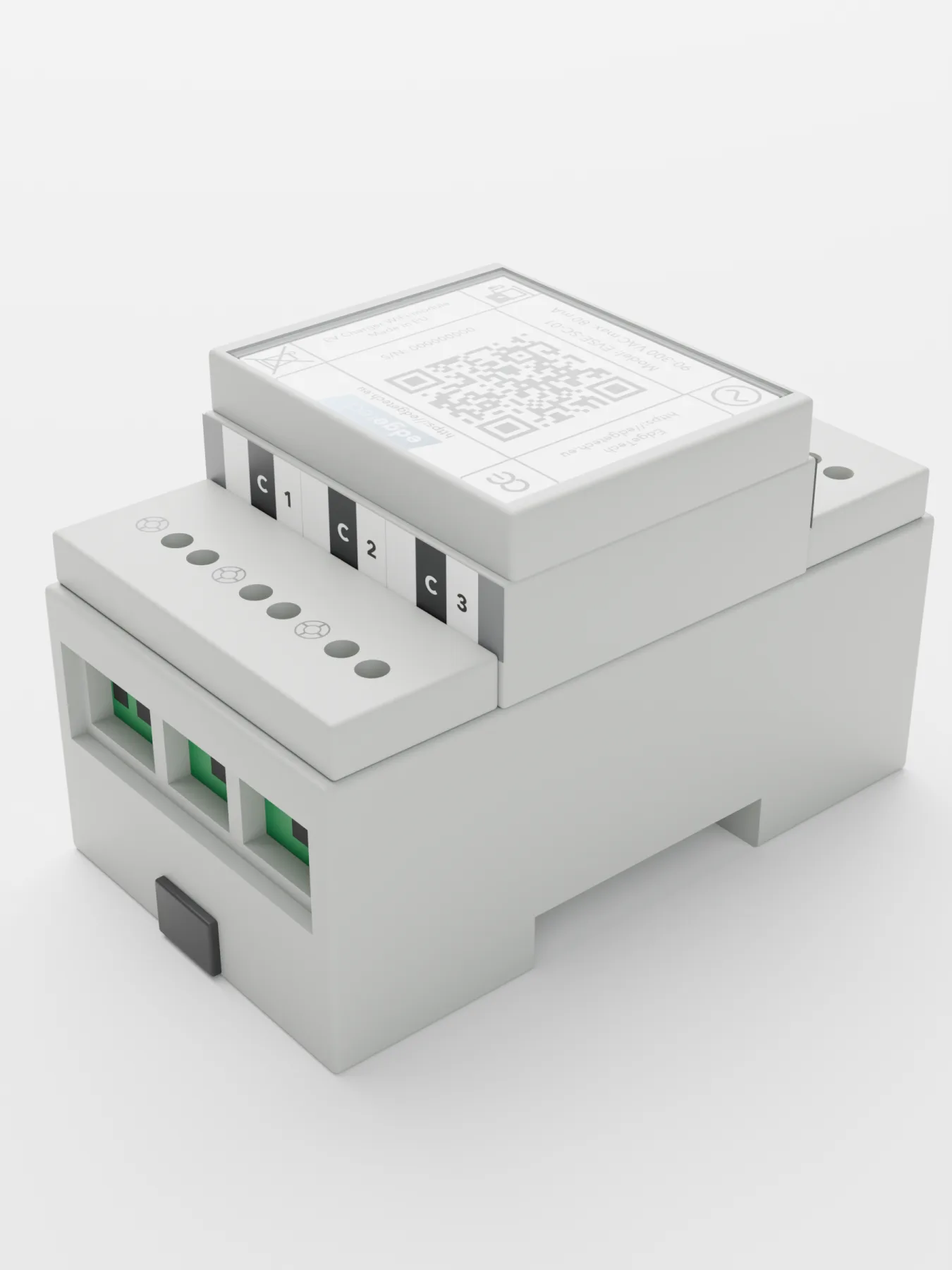
1. The system at a glance
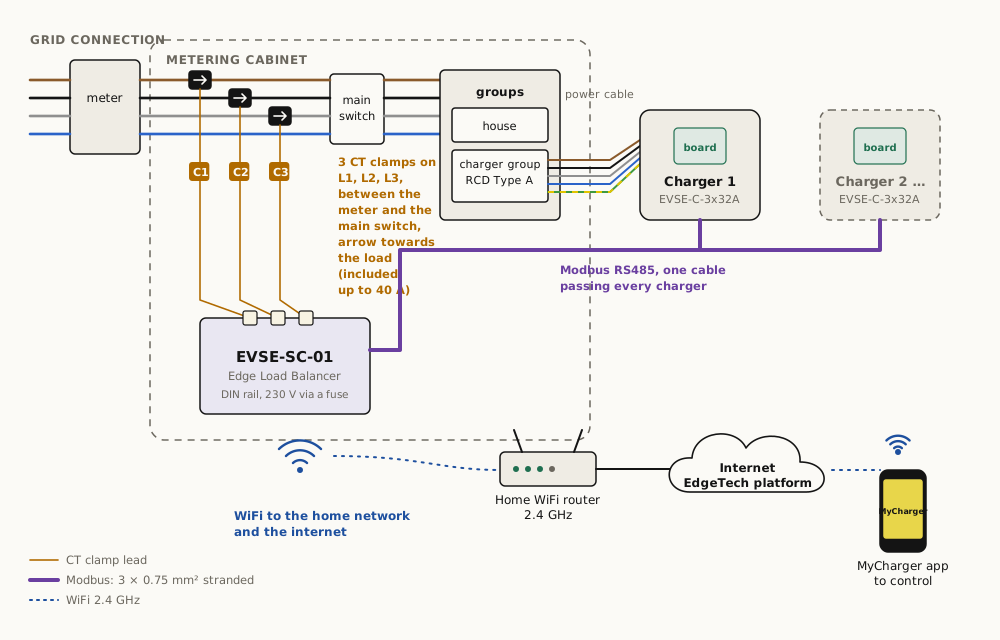
An EdgeTech charger with load balancing has two parts, connected by one Modbus cable:
| Part | Where | What it does |
|---|---|---|
| Charger with the charge controller EVSE-C-3x32A and the RDC-DD EVSE-X-DCD | At the parking space | Talks to the car, switches the power to the car on and off, and stops charging on overheating, a missing earth or a DC residual current above 6 mA |
| Site controller EVSE-SC-01 | On the DIN rail in the distribution board | Measures what the house uses with three CT clamps and tells each charger, every second, how much current it may take, so the main fuse never trips. Connects to the MyCharger app over WiFi |
Two cables run between the metering cabinet and the charger: the power cable and the Modbus cable.
Without a site controller the charger also works on its own: it charges every car that is plugged in, up to the maximum set with its jumper (16 A or 32 A per phase).
This manual is for the EVSE-SC-01 with CT clamps. For a house with a DSMR 5 smart meter, use the EVSE-SC-02 and its manual.
2. Safety
- Installation and maintenance are for qualified electricians who have read this manual and work to IEC 60364 and NEN 1010 (in the Netherlands also NEN 3140).
- Work only on an installation that is switched off and verified dead.
- Do not work in the rain or at a relative humidity above 95 %.
- Size every cable for its current and length, per NEN 1010.
- Protect every charger with its own circuit breaker and an RCD type A (30 mA). The RDC-DD in the charger detects DC residual currents, so a type B RCD is not needed.
- Make sure that all chargers together cannot draw more than the main connection allows. The site controller takes care of this during charging; in larger installations, put all chargers behind one common fuse as well.
- The site controller EVSE-SC-01 is a bare DIN-rail module (IP00): install it indoors, in the distribution board, behind a fuse, where its terminals cannot be touched.
3. Before you start
3.1 The grid connection
Find out the size of the main connection: 1-phase or 3-phase, and the main fuse (for example 3×25 A). It is on the energy bill or available from the network operator. You enter it in the app later (section 8).
3.2 What you need
- An RCD type A and a circuit breaker for the charger circuit, 1-phase or 3-phase to match the charger.
- 3 DIN modules (54 mm) in the distribution board for the EVSE-SC-01, and a fuse for its supply.
- Room to put the CT clamps around the three phase wires between the meter and the main switch.
- A main connection of up to 3×35 A for the supplied CT clamps (40 A per phase); clamps for other currents on request.
- WiFi (2.4 GHz) at the distribution board. If coverage in the metering cabinet is poor, add a repeater or an access point nearby.
- Up to 4 chargers.
3.3 Cables
| Cable | Requirement |
|---|---|
| Power cable | L1, L2, L3, N, PE (or L1, N, PE for 1-phase), sized for the current and the length per NEN 1010 |
| Modbus cable | 3 cores of at least 0.75 mm², stranded (multi-core). Up to 150 m. No Ethernet cable (Cat5/Cat6) in the terminals: its thin solid cores break |
| Underground | Use armoured underground cable, or lay both cables in a conduit large enough for the two |
4. Install the charger
4.1 The connections of the charge controller
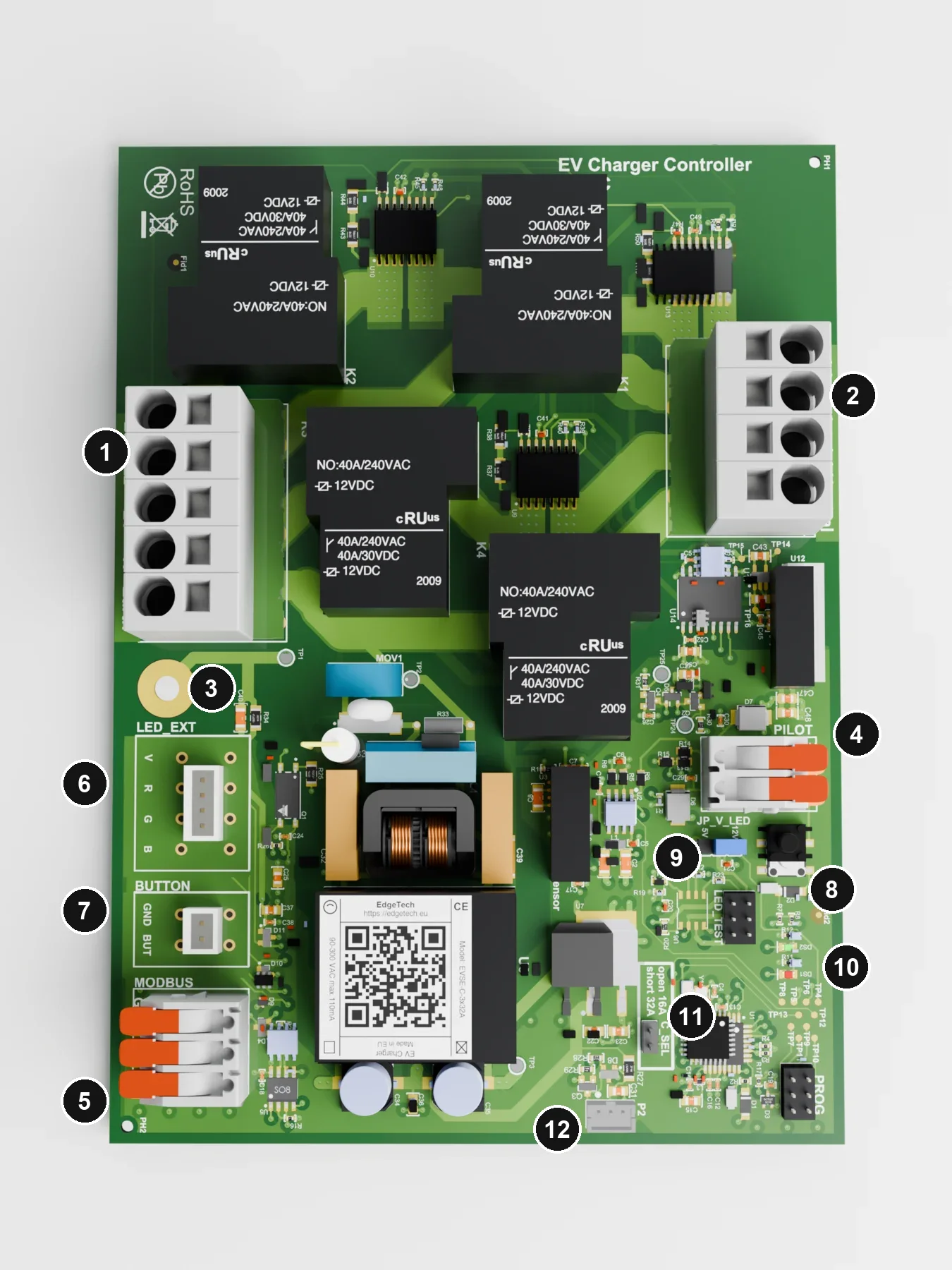
| # | Connection | Use |
|---|---|---|
| 1 | Mains in, 5-pole | L1, L2, L3, N, PE of the power cable |
| 2 | To the car, 4-pole | L1, L2, L3, N to the charging cable or socket, through the RDC-DD ring |
| 3 | Earth | Earth point of the board |
| 4 | Control pilot, terminal with levers | CP: the thin signal wire of the charging cable. PP: only with a Type 2 socket; with a fixed cable leave PP empty |
| 5 | Modbus, terminal with levers | G, A, B of the Modbus cable |
| 6 | External LED | Common-cathode RGB LED or three separate LEDs |
| 7 | External button | Optional push button (GND, BUT) |
| 8 | Test button | Gives the board a state change |
| 9 | JP_V_LED | Voltage for the external LED: 5 V or 12 V |
| 10 | Indicator LEDs | Green: status. Red: error code (section 7) |
| 11 | C_SEL | Maximum current: open = 16 A, jumper fitted = 32 A per phase |
| 12 | RDC-DD and cable lock | Two white connectors side by side: 4-pin for the RDC-DD lead, 3-pin for the cable lock module EVSE-X-CL (Type 2 socket only) |
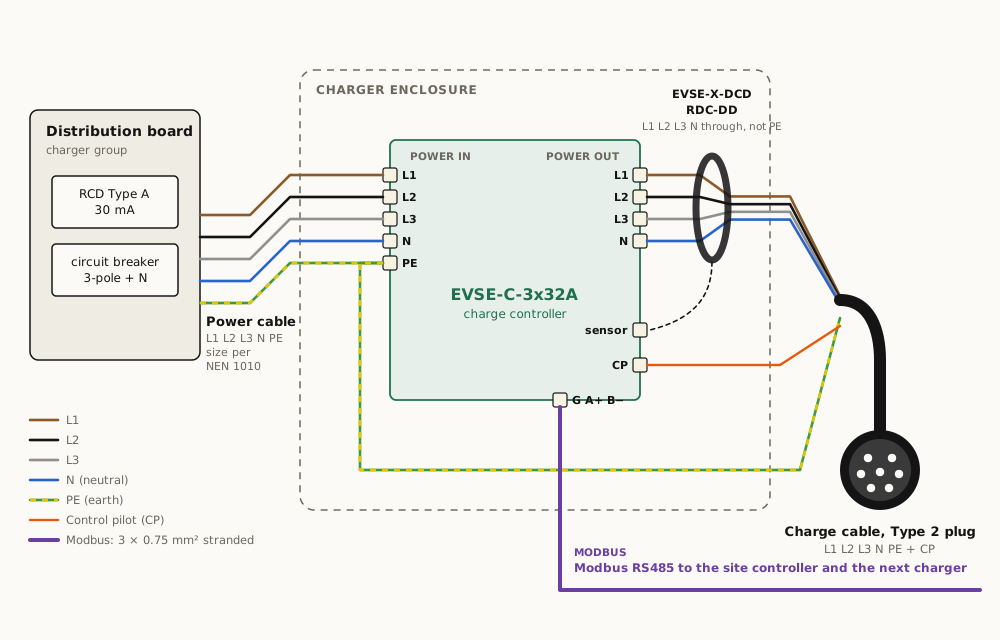
4.2 Wiring
4.3 Step by step
- Choose the place. Outdoors on a post or a wall, or indoors. A garage or cellar keeps the charger out of the sun; the fixed cable can then hang outside. Check that the charging cable reaches the car.
- Prepare the enclosure. Drill the holes for the cable glands of the power cable and the charging cable with a step drill, and the holes in the back wall for mounting. Seal the screw holes.
- Mount the charge controller in the enclosure, directly or with the brackets.
- Connect the RDC-DD to the 4-pin connector at 12 with the supplied lead.
- Earth. All earth wires meet in the supplied push-in connector: PE from terminal 1, PE of the power cable and PE of the charging cable.
- Charging cable. Feed it through its gland. Put L1, L2, L3 and N through the RDC-DD ring and into terminal 2; PE goes to the earth connector, not through the ring. Put the CP wire into the CP input of terminal 4. Lift the lever fully, push the wire in deep, close the lever and pull gently to check.
- Power cable. Mount the enclosure, feed the power cable through its gland and connect L1, L2, L3, N to terminal 1 and PE to the earth connector. Watch the colours: L1 on L1, L2 on L2, L3 on L3.
- Modbus cable. G, A and B to terminal 5: G to G, A to A, B to B at the site controller.
- Check that no strands stick out of any terminal. A loose strand can touch the next terminal and cause a short circuit.
- Maximum current. Set C_SEL (11) to 16 A or 32 A to match the circuit breaker and the cable.
4.4 Chargers with a Type 2 socket
- PP. The socket tells the charger the rating of the cable that is plugged in through the proximity pilot (PP). Connect PP of the socket to the PP input of terminal 4, and check the connection with an ohmmeter from the socket’s PP contact to the PP input.
- Cable lock. The socket’s lock is driven by the cable lock module EVSE-X-CL on the 3-pin connector at 12. Each type of socket lock is tested before supply.
5. Install the site controller EVSE-SC-01
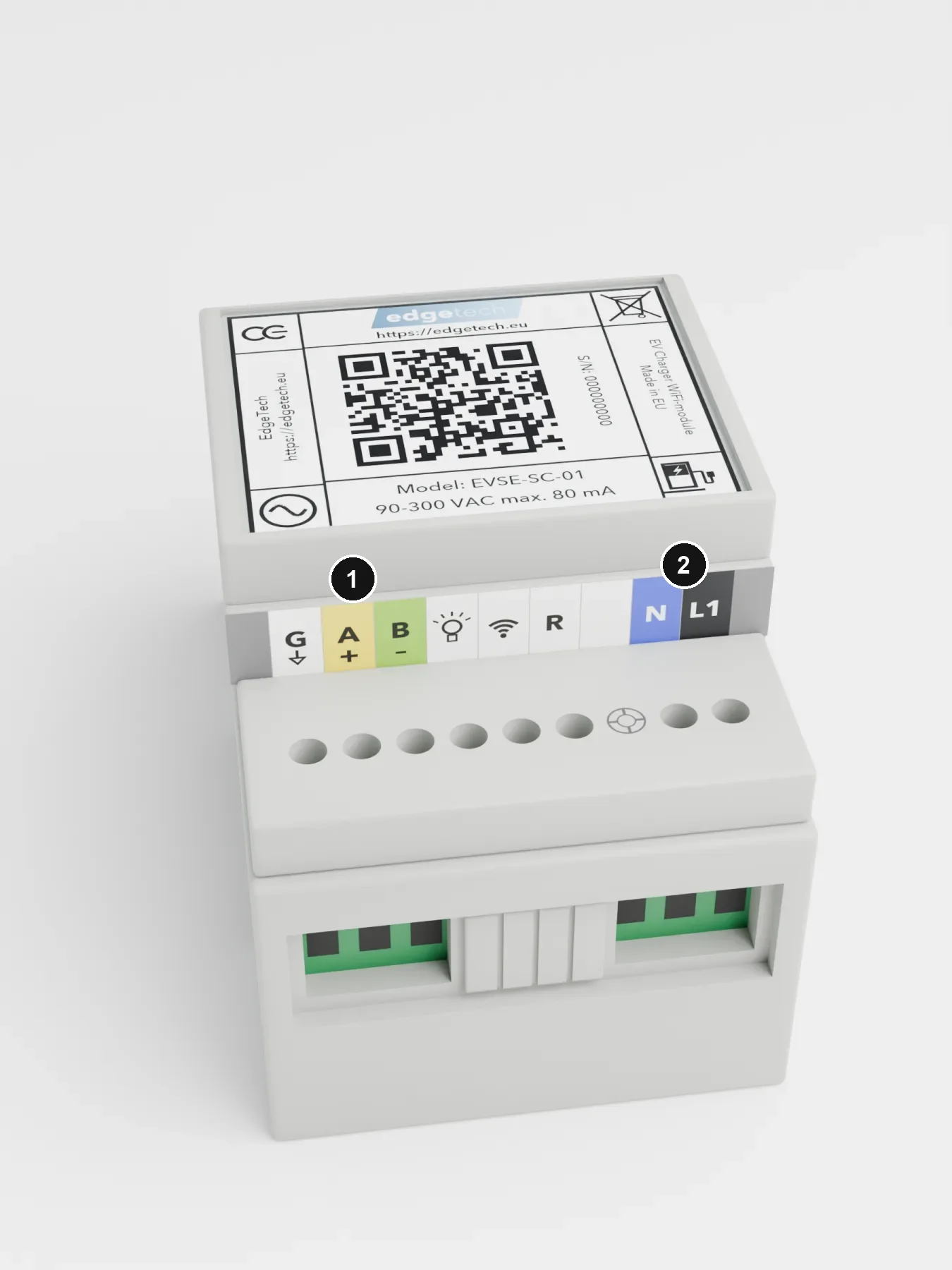
- Mount the EVSE-SC-01 on the DIN rail in the distribution board.
- Supply (2): N and L1, behind a fuse. Use L1: the site controller uses it as the reference to determine the phases and the direction of current.
- Modbus (1): the Modbus cable from the charger to G, A+ and B−: G to G, A to A, B to B.
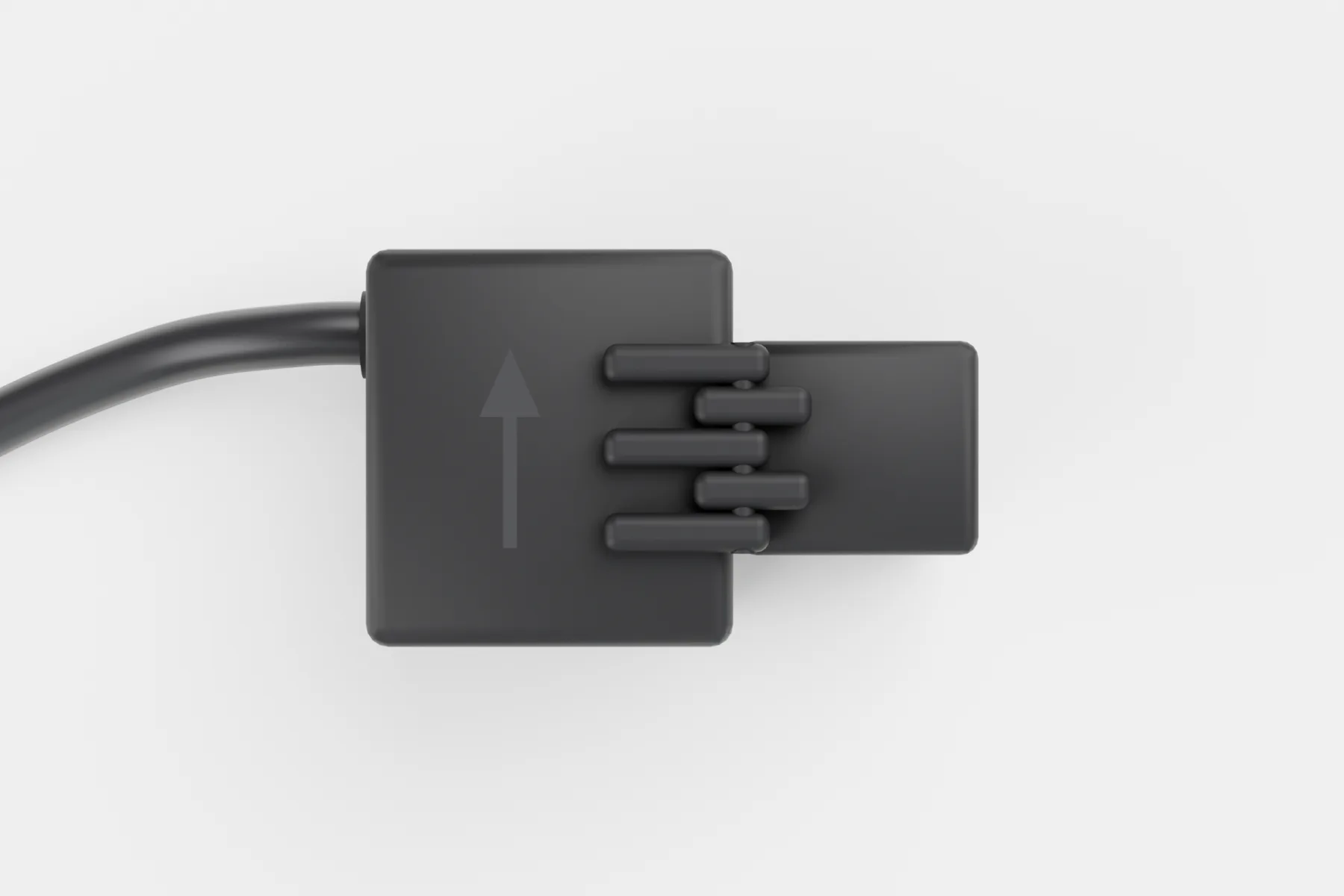
- CT clamps: put one clamp around each phase wire between the meter and the main switch. There the three phases are not yet split into groups, so the whole house is measured: C1 on L1, C2 on L2, C3 on L3. The arrow points towards the house (away from the meter). Connect the leads to C1, C2 and C3 and watch the markings.
- Use only the supplied CT clamps. They measure up to 40 A per phase, enough for a 3×25 A or 3×35 A connection; clamps for other currents on request. Other clamps can destroy the inputs.
- Tip: drill a 5 mm hole in the cover of the distribution board in front of the site controller’s LED, so its colour can be seen without opening the board.
6. More than one charger
- All chargers share one Modbus cable that runs from the site controller past every charger. Keep the branch from the cable to each board short.
- Up to 4 chargers on the EVSE-SC-01.
- Every charger leaves the factory at Modbus address 1. The site controller gives each new charger its own address; you do not have to set anything.
7. Switch on and check
7.1 The charger
Switch on the RCD and the circuit breaker. Plug in a car or a test box: the charger switches on and the car starts charging. The indicator LEDs (10) on the charge controller show what it is doing:
| Green LED | Meaning |
|---|---|
| Steady on | Started, ready to charge |
| Short on, short off | Charging cable connected |
| Short on, long off | Charging on 1 phase |
| 2× short on, long off | Charging on 3 phases |
With an external RGB LED (6), blue steady means the charger is charging.
If the red LED is on, there is an error; its blink pattern gives the error code. Check the earth first, both at the charger and at the house.
| Error | Red LED |
|---|---|
| Start-up error | Very long off, very short on |
| High temperature | Short on, short off, short on, long off |
| Temperature too high, charging stopped | Short on, short off, 2× short on, long off |
| No earth connected | Short on, short off, 3× short on, briefly off |
| Relay stays switched on | Short on, short off, 4× short on, short off |
| DC residual current (RDC-DD) | Short on, short off, short on, short off, 2× short on, short off |
| No error | Off |
7.2 The site controller EVSE-SC-01
The site controller has one LED that changes colour. In normal operation it breathes cyan, or is steady blue while a car is plugged in.
| LED | Meaning |
|---|---|
| White | Starting |
| Cyan, blinking | Not connected to the EdgeTech server yet: WiFi or internet is still connecting, or is down. Load balancing keeps working |
| Cyan, breathing | Connected to the EdgeTech server. Everything is working |
| Blue, steady | A car is plugged in at one of the chargers |
| Yellow, blinking slowly | Searching for chargers on the Modbus cable (at start-up and when pairing) |
| Orange, fading | Loading new firmware into a charger |
| Green, blinking or breathing | No active subscription. Load balancing keeps working |
| Dark blue, blinking | Setup mode: ready for the app |
| Magenta, blinking | Firmware update of the site controller. Do not switch off |
| Red, blinking fast | Factory reset armed: press once more to confirm (section 8) |
| Red, steady | Factory reset in progress; the site controller then restarts |
| Red flashes, then a restart | Internal fault; the site controller restarts itself. Contact support if it repeats |
8. Set up with the MyCharger app
- Install MyCharger from the App Store or Google Play.
- Setup mode. Hold the button with the WiFi symbol for 3 seconds, until the LED blinks dark blue. (The R button next to it only restarts the site controller.)
- WiFi. In the app, scan the QR code on the site controller and enter the name and password of the WiFi network (2.4 GHz). If there are several networks, choose the one with the strongest signal at the site controller.
- Grid connection. Enter the size of the main connection, for example 3×25 A, or 1×40 A for an older house with a 1-phase connection.
- Pair the chargers. The app finds the chargers on the Modbus cable; give each one a name. More chargers can be added later under Settings › Chargers, also chargers of another installation with an access code.
The site controller may load new firmware during setup: the LED then blinks magenta, the site controller restarts, and the LED goes to cyan. If the app showed an error meanwhile, close the app, open it again, and repeat steps 3 and 4.
Factory reset. This removes the WiFi settings and the list of chargers, then restarts the site controller; set it up again from step 2.
- Press the button with the WiFi symbol 4 times quickly (short presses, less than a second apart). The LED blinks red fast.
- Wait 1 to 5 seconds, then press once more. The LED turns steady red and the site controller restarts.
If you do not press within 5 seconds, nothing is reset.
9. Subscription and support
Load balancing always keeps working, with or without a subscription. With a subscription the app also gives control from anywhere: start and stop, delayed charging for off-peak hours, consumption overviews and notifications, and firmware updates for the site controller and the chargers. See App and subscription and Subscription.
If the main connection changes, set up the site controller again in the app.
Support: support@edgetech.eu, with a photo of the QR code on the site controller. The latest version of this manual is always at edgetech.eu/manual.
10. Disposal
Under normal conditions the equipment lasts at least 10 years. Hand in old equipment at the supplier or at a collection point for electrical waste; do not put it in household waste.
11. Technical data
| Charge controller EVSE-C-3x32A | Site controller EVSE-SC-01 | |
|---|---|---|
| Supply | 90–300 V AC, 50 Hz, 3 W | 90–300 V AC, 50 Hz, 3 W |
| Charging | Mode 3 (IEC 61851-1), 1- or 3-phase, 6–32 A, max 3×32 A (22 kW) | |
| Measurement | 3 CT clamps, up to 40 A per phase | |
| Chargers | Up to 4 | |
| Modbus | RS485, 9600 8N1 | RS485 master, 9600 8N1 |
| WiFi | 2.4 GHz, 802.11 b/g/n | |
| Size | 168 × 122 × 25 mm | 90 × 54 × 58 mm, 3 DIN modules |
| Protection | IP00, class I, for building into an enclosure | IP00, class I, in the distribution board |
The RDC-DD EVSE-X-DCD trips at a DC residual current above 6 mA and switches off within about 300 ms through the charge controller. Full specifications: charge controller, RDC-DD, EVSE-SC-01.
Edge FS B.V. · Brigittenstraat 11, 3512 KJ Utrecht, the Netherlands · info@edgetech.eu